Copyright 2012 - Sefendi Blog. Powered by Blogger.
Showing posts with label Software Resetter. Show all posts

Epson Stylus L200 Adjustment Program

Written By Sefendi on Thursday, November 22, 2012 | 10:32 PM


You can get software resetter for Epson L200, you can download at this link : Download Epson L200 resetter.

Instruction to use Epson L200 Resetter Software :
  1. Double click Adjprog.exe.
  2. The following screen appears. Press the "Accept".
  3. Press the "Particular Adjustment mode".
  4. On the next screen select Model Name "L200" as the following screen and then the OK button.
  5. Select the "Waste ink pad counter" and then click "OK".
  6. Select the "Check" to retrieve the current value. Then Pressing the button "Initialization" to reset the counter to zero.
  7. Press the "OK" and the counter will be reset.
  8. Turn off the printer as a program instructed then turn on again.
  9. Press "Finish" to close the screen.
  10. Close the software. Pressing the "Previous".
  11. In the next screen, click "Quit".
10:32 PM | 0 comments | Read More

How To Reset Waste Ink Pad Counter Epson Stylus T13 Printer

Written By Sefendi on Tuesday, November 15, 2011 | 8:23 PM


The first step Epson Stylus T13 Printer driver must be installed. You can download the following link : Download Driver Epson Stylus T13.
You can get software resetter for Epson Stylus T13, you can download at this link : Download Epson Stylus T13 Resetter.

Instruction to use Epson Stylus T13 Resetter Software :
  1. Double click Adjprog.exe.
  2. The following screen appears. Press the "Accept".
  3. Press the "Particular Adjustment mode".
  4. On the next screen select Model Name "Epson Stylus T13" as the following screen and then the OK button.
  5. Select the "Waste ink pad counter" and then click "OK".
  6. Select the "Check" to retrieve the current value. Then Pressing the button "Initialization" to reset the counter to zero.
  7. Press the "OK" and the counter will be reset.
  8. Turn off the printer as a program instructed then turn on again.
  9. Press "Finish" to close the screen.
  10. Close the software. Pressing the "Previous".
  11. In the next screen, click "Quit".
8:23 PM | 0 comments | Read More

How To Reset Waste Ink Pad Counter Epson R220 Printer

Written By Sefendi on Friday, November 4, 2011 | 12:54 AM

You can get software resetter for Epson R220, you can download at this link : Download Epson R220 Resetter.

Instruction to use Epson R220 Resetter Software :
  1. Double click Adjprog.exe.
  2. The following screen appears. Press the "Accept".
  3. On the next screen select Model Name R220, Port Selection And Destination as the following screen and then the OK button.
  4. Select the "Waste ink pad counter" and then click "OK".
  5. Select the "Check" to retrieve the current value. Then Pressing the button "Initialization" to reset the counter to zero.
  6. Press the "OK" and the counter will be reset.
  7. Turn off the printer as a program instructed then turn on again.
  8. Press "Finish" to close the screen.
  9. Close the software. Pressing the "Previous".
  10. In the next screen, click "Quit".
12:54 AM | 1 comments | Read More

Ho To Ink Reset For Epson L100, L200, L800

Written By Sefendi on Friday, October 28, 2011 | 8:19 PM

This video from youtube by SuperPrint2010


Epson L100, L200, L800 printers Ink Reset. Free ink reset - no codes no limits. You can now use compatible inks and refill Epson L100, L200, L800 printers. Reset the Ink Levels yourself. EASY and FREE. Download WIC Reset Utility - www.EpsonReset.com.
8:19 PM | 0 comments | Read More

How To Reset Epson TX700W

Written By Sefendi on Friday, October 21, 2011 | 8:09 PM


Instruction to use Epson TX700W Resetter Software :
  1. The following screen appears. Press the "Accept".
  2. Press the "Particular Adjustment Mode".
  3. Select the "Consumables maintenance counter" and then press "OK".
  4. Select the button "Check" to retrieve the current value. Then Pressing the button "Initialization" to reset the counter to zero.
  5. Press the "Accept" and the counter will be reset.
  6. Turn off the printer. The counter was reset.
  7. Press the "Finish" to close the screen.
  8. Close the software. Pressing the "Previous".
  9. And on the next screen, press the "Quit".
8:09 PM | 0 comments | Read More

How To Reset Waste Ink Pad Counter Epson TX121 And ME320 Printer

Written By Sefendi on Thursday, October 13, 2011 | 2:36 AM


You can get software resetter for Epson TX121 And ME320, you can download at this link : Download Epson TX121 And ME320 resetter.

Instruction to use Epson TX121 And ME320 Resetter Software :
  1. Double click Adjprog.exe.
  2. The following screen appears. Press the "Accept".
  3. Press the "Particular Adjustment mode".
  4. On the next screen select Model Name "TX121" as the following screen and then the OK button.
  5. Select the "Waste ink pad counter" and then click "OK".
  6. Select the "Check" to retrieve the current value. Then Pressing the button "Initialization" to reset the counter to zero.
  7. Press the "OK" and the counter will be reset.
  8. Turn off the printer as a program instructed then turn on again.
  9. Press "Finish" to close the screen.
  10. Close the software. Pressing the "Previous".
  11. In the next screen, click "Quit".
2:36 AM | 0 comments | Read More

How To Reset Waste Ink Pad Counter Epson L100

Written By Sefendi on Wednesday, October 5, 2011 | 7:48 PM

You can get software resetter for Epson L100, you can download at this link : Download Epson L100 resetter.
Instruction to use Epson L100 Resetter Software :
  1. Double click Adjprog.exe.
  2. The following screen appears. Press the "Accept".
  3. Press the "Particular Adjustment mode".
  4. On the next screen select Model Name "L100" as the following screen and then the OK button.
  5. Select the "Waste ink pad counter" and then click "OK".
  6. Select the "Check" to retrieve the current value. Then Pressing the button "Initialization" to reset the  counter to zero.
  7. Press the "OK" and the counter will be reset.
  8. Turn off the printer as a program instructed then turn on again.
  9. Press "Finish" to close the screen.
  10. Close the software. Pressing the "Previous".
  11. In the next screen, click "Quit".
7:48 PM | 2 comments | Read More

How To Reset Waste Ink Pad Counter Epson Stylus CX1500

Written By Sefendi on Monday, September 26, 2011 | 9:05 PM


When you get the "service needed" or the "parts need changed" error, and the only light on the printer is one red led light. This is what you do.
  1. Turn on the printer.
  2. Download the Epson stylus Color Service Program CX1500.
  3. Unzip and run FT0077_0624.exe.
  4. In the upper tabs go to RD settings.
  5. Double click on option 7, Dump ROM data.
  6. When the new window opens go to Protection counter A, change the number there to 0.
  7. Click OK, then it will confirm that it has saved the ROM data and click ok, exit the application.
  8. Turn the printer off.
9:05 PM | 0 comments | Read More

How To Reset Waste Ink Pad Counter Epson Stylus TX400

Written By Sefendi on Friday, September 16, 2011 | 9:04 PM

You can get software resetter for Epson TX400, you can download at this link : Download Epson TX400 resetter.

Instruction to use Epson Stylus TX400 Resetter Software :
  1. The following screen appears. Press the "Accept"
  2. Press the "Particular Adjustment mode":
  3. Select the "Waste ink pad counter" and then click "OK":
  4. Select the "check" to retrieve the current value. then Pressing the button "Initialization" to reset the counter to zero.
  5. Press the "OK" and the counter will be reset.
  6. Turn off the printer. The counter was reset.
  7. Press "Finish" to close the screen.
  8. Close the software. Pressing the "Previous"
  9. And on the next screen, click "Quit"
9:04 PM | 0 comments | Read More

How To Reset Waste Ink Pad Counter Epson Stylus T23

Written By Sefendi on Friday, August 19, 2011 | 11:22 PM

You can get software resetter for Epson T23, you can download at this link : Download Epson T23 resetter.

Instruction to use Epson Stylus T23 Resetter Software :
  1. The following screen appears. Press the "Accept"  

  2.  Press the "Particular Adjustment mode":

  3. On the next screen select Model Name "T23" as the following screen and then the OK button. 

  4. Select the "Waste ink pad counter" and then click "OK":

  5. Select the "check" to retrieve the current value. Then Pressing the button "Initialization" to reset the  counter to zero.

  6. Press the "OK" and the counter will be reset.

  7. Turn off. The counter was reset.

  8. Press "Finish" to close the screen.

  9. Close the software. Pressing the "Previous"

  10. In the next screen, click "Quit" 

11:22 PM | 0 comments | Read More

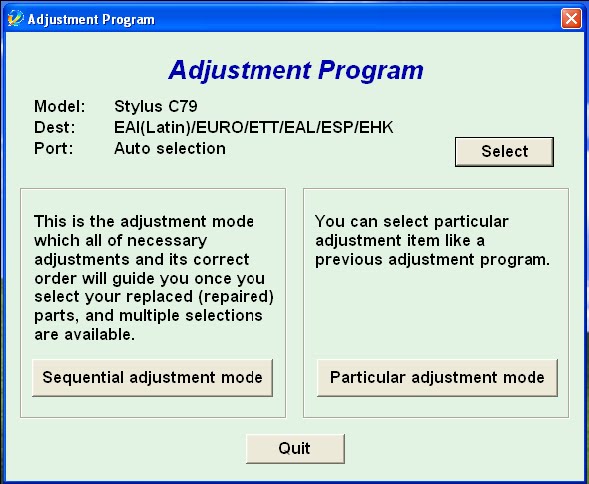
How To Reset Waste Ink Pad Counter Epson Stylus C79

Written By Sefendi on Thursday, August 11, 2011 | 1:23 AM


Before using the Software Resetter Epson Stylus C79, ensure that :
  1. Make sure you have the Software Resetter Printer Epson Stylus C79.

  2. Make sure that the damages requested in the printer reset Waste Ink Pad Counter ( usually the printer lights glow red - and green alternately print head does not move).

Instruction to use Epson Stylus C79 Resetter Software :
  1. The following screen appears. Press the "Accept"

  2. Press the "Particular Adjustment mode":

  3. Select the "Waste ink pad counter" and then click "OK":

  4. Select the "check" to retrieve the current value. then pressing the button "Initialization" to reset the counter to zero.

  5. Press the "Accept" and the counter will be reset.

  6. Turn off the printer. The counter was reset.

  7. Press "Finish" to close the screen.

  8. Close the software. Pressing the "Previous"

  9. In the next screen, click "Quit"

1:23 AM | 0 comments | Read More

Reset Manual Printer Canon BJC-2000 BJC-2100

Written By Sefendi on Wednesday, July 7, 2010 | 10:47 PM


Canon BJC-2000 BJC-2100 Waste Ink Counter Reset.
Step manual for Service mode :
  1. Remove the Cartridge
  2. Unplug the AC Power Cord
  3. Close Front access panel
  4. Hold down the RESUME/RESET button and plug in the AC power cord
  5. Release RESUME/RESET after plugging in the AC Power cord.
  6. Press the RESUME/RESET once within 5 seconds and release the RESUME/RESET .
  7. Press and HOLD RESUME/RESET for two seconds or more and release it.
  8. Press and HOLD RESUME/RESET for two seconds or more and release it.
  9. Unplug AC Power Cord to set data.
10:47 PM | 0 comments | Read More